 Chris Shire
After the firewall shenanigans of recent weeks, I’ve been thinking about what I’ll do if (when?) a problem strikes again. Specifically, what would I do if I wake up one morning and the box was just dead? I was temporarily saved previously by a very-EOL Asus router, but I definitely don’t want to rely on that in the future. I certainly have options now - Opnsense can run just fine in Proxmox with my new network interface courtesy of Taobao, and I have an entire Topton box that I built when I didn’t expect to get much from RMA’ing the dead Protectli box.
I also wanted to have a go at communicating over a serial port, kinda assuming a worst case scenario where I wouldn’t be able to talk to the box over my network. Is this realistic? Probably not, but the firewall boxes are headless and I tend to use a JetKVM to view output. However, the JetKVM depends on the network! So what if I had to install Opnsense headless with no network (and I didn’t want to get my TV off the wall to plug the box in to that with a keyboard…). Well, in that very specific circumstance it might be useful to use a serial connection. Besides, the cable was super cheap, I had never properly messed about with serial before and I was interested.
Doing this on Linux was actually pretty straightforward. Attach USB to serial RJ45 cable (the COM port on my Topton box), check the connected USB device with sudo dmesg | grep tty, install Minicom (a modem control and terminal emulator) and issue sudo minicom -D /dev/ttyUSB0 115200 et voila!
MacOS - Drivers
However, my Linux box is also headless- How would I view it’s output if my network was down! It had to be done from my Mac, which turned out to need extra steps and was kind of a pain. The first pain was hoping that my USB-C to USB-A adapter wasn’t going to cock anything up with the connection. Whatever LLM model I consulted when I was troubleshooting said this was unlikely, and indeed it wasn’t an issue.
However, for some reason the Pl2303 serial cable I had could only run at 9600 baud with the default MacOS driver. I could see text readout from the serial connection, but it was all garbled nonsenes. At one point I could connect and see output, but not enter any text. Unfortunately 115200 baud setting on my Topton box meant I had to get 115200 baud working on my Mac. It seems in the past that a driver was available from a company called Prolific, but they seem to have moved it’s distribution from their website to the Mac App Store. This looked…a bit sketchy to be honest.
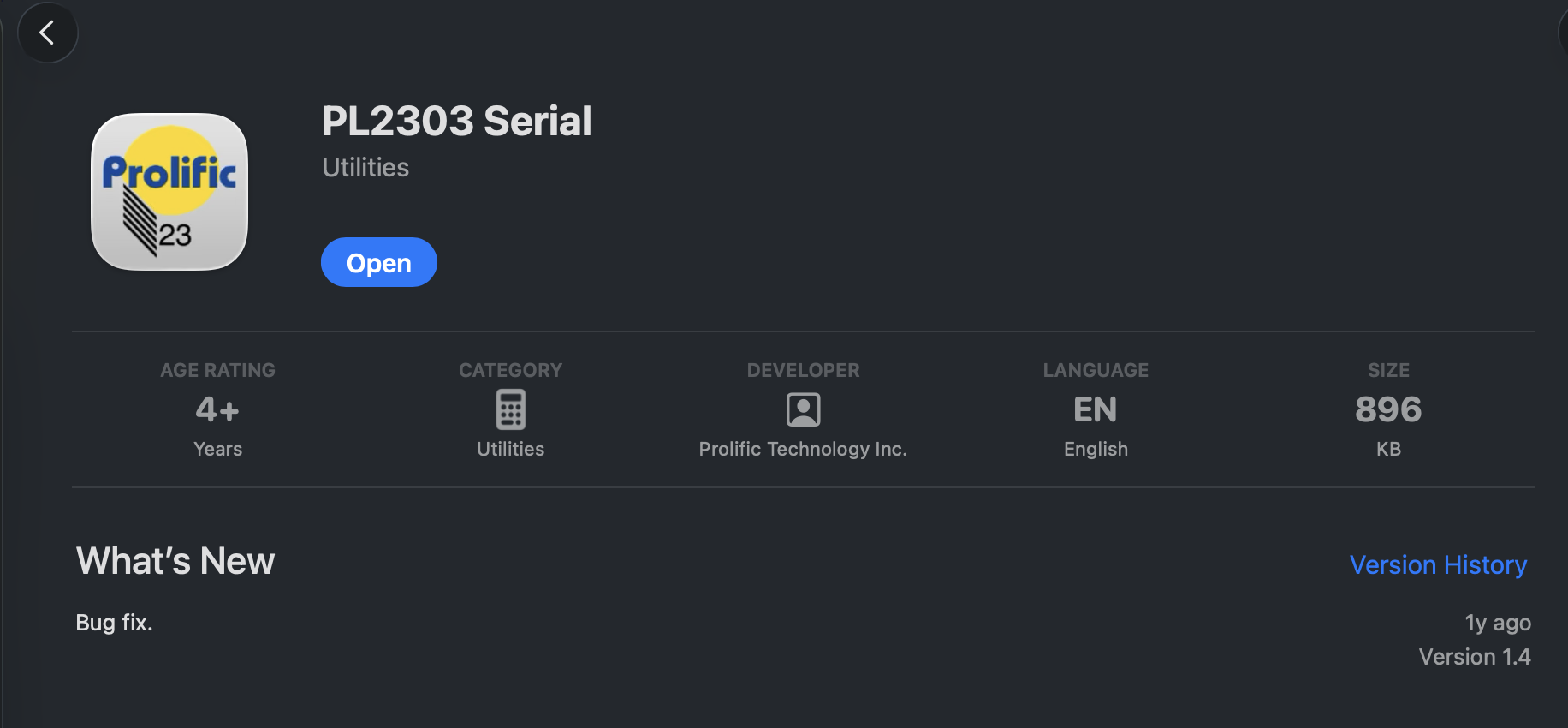
So in the interests of science, I grabbed it anyway and installed it. Look for the PL2303 Serial driver.
Then, in system settings have a look for Login Items & Extensions. Scroll down to Extensions, select By Category and look for Driver Extensions. Make sure the PL2303 driver is enabled.
Then ensure that the driver is loaded in a terminal command - ls -al /dev/cu*. Mine was listed as /dev/cu.PL2303-USBtoUART1240
Minicom
A lot of guides suggest the use of screen, but the shortcuts didn’t seem to work so well on my Mac. I used to use screen over a decade ago for persistent remote connections to servers. However, I found tmux to be easier and better integrated into iterm2 on my Mac and have been using that ever since. I decided to try Minicom on my Mac, which is available through the package manager brew. a quick brew install minicom later and we were ready.
As a note, minicom’s keyboard shortcuts are Ctrl+A on my Linux machine, but on MacOS, Option+Z was the equivalent. I set up Minicom’s serial port settings to 115200 8n1 and all other settings to no.
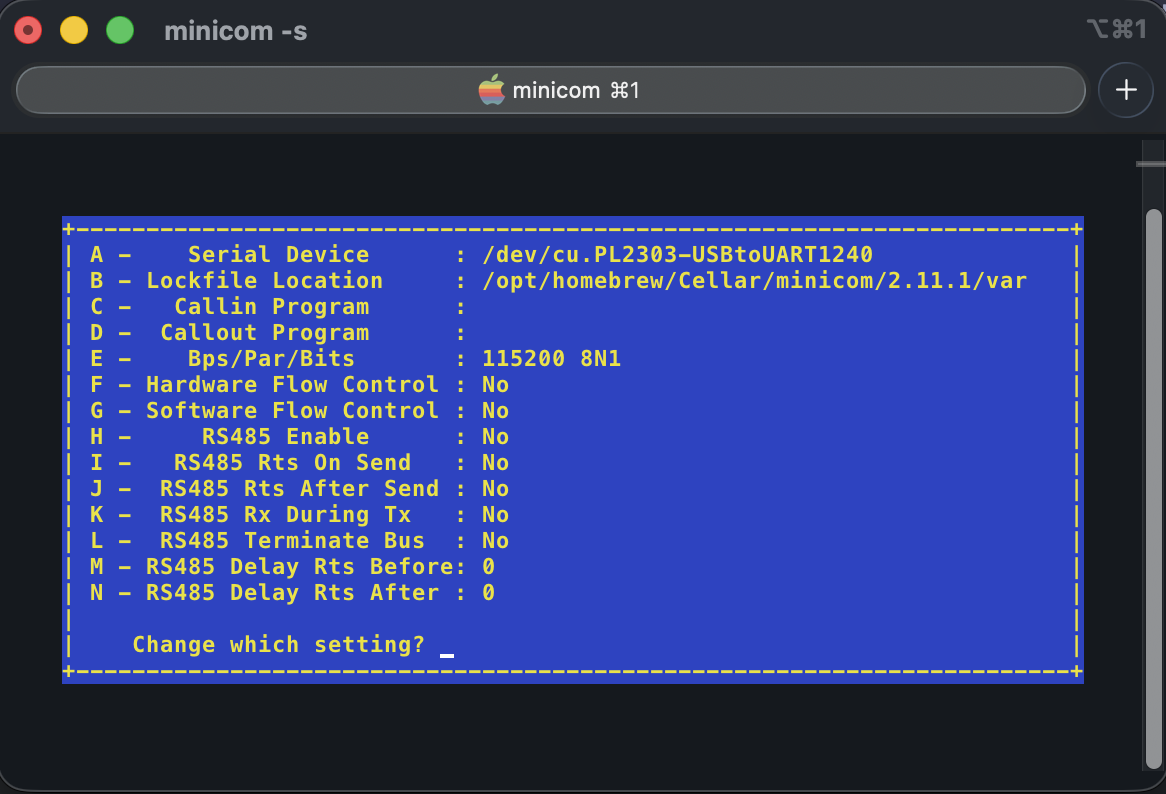
Then I issued:
minicom -D /dev/cu.PL2303-USBtoUART1240 -b 115200
and pressed enter a couple of times…and success! A command login prompt!
What really got me was when I restarted the box and saw the BIOS screen was accessible and navigable in the terminal serial interface. It was the same for the Opnsense splash screen, which was now very ASCII like and outputting to the serial terminal. I thought it was pretty cool.
But what if I have to install Opnsense via serial? Or transfer a file? What then?!
File transfer over serial
Now let’s be clear, if you have connected via serial and have booted the OS from a USB key, you’re probably all set. In my case, I could plug the old install of Opnsense on my Topton box into the modem, update the OS and then restore the config.xml that Opnsense automatically backs up on the regular.
That would be easy enough to restore the network.
However, I was now interested in messing about with serial to see what was possible. I had seen this thread on the Opnsense forums and found that my i226 NICs were at firmware version 2.14. Were they working just fine? Yes, totally without issue. Did I want to try and update the firmware anyway for the hell of it? Over serial? Yeah!
The first issue…getting the updates over the the machine
Transferring files with minicom copy/paste
So I couldn’t get any of the Minicom z/x/y modem options to work to send the files from my Mac to the Opnsense box. An LLM suggested copy & paste…how on earth was that going to work? Turns out, AWESOMELY. The idea was to zip the relevant files, then turn the zip into a base64 file. This could then be copy/pasted straight into the terminal and captured by a waiting file on the Opnsense machine. Then the base64 file could be decoded and, hopefully, work.
So I zipped up all the necessary files to update the NIC’s on the Opnsense box and then issued
base64 -b 76 -i Archice.zip -o Archive.zip.b64
on my Mac to turn the zip into the base64 encoded file. Then I prepared the Opnsense box to receive the file (this process was across two tmux panes to make it easier). In the minicom shell connected to the Opnsense box I issued the following:
cd <wherever you want the file to end up>
stty -echo
cat > Archive.zip.b64
Sending the file from MacOS using minicom and decoding
I brought up the Minicom menu with Option + z and hit Y for pasting. I then wrote out the local MacOS path to the file I wanted to send (the base64 encoded Archive.zip file) and hit enter.
At that point a blast of data started in the terminal. I remember seeing software being distrubuted in the 80s via TV audio transmission - the idea was you could capture the audio with a microphone into a cassette, whack that into your Commodore64 (or whatever tape-drive enabled computer you had) and read the data back. This was somewhat reminiscent of that as I watched the data stream into the waiting file on the Opnsense box. It was only about 3.5mb, but it took just over 5mins for everything to transfer. Blazing fast for the…early 90s maybe?
Anyway, I waited for the transfer to complete and hit Ctrl-D and typed stty echo when it was done. We had a transferred the Base64 file! Now if I had been more thorough I would have compared the source and destination’s file hashes to check that no mistakes had been made…but I was wasn’t so I didn’t.
All that was left was to decode the file and unzip it:
base64 -d /path/to/file/Archive.zip.b64 > /path/to/file/Archive.zip
unzip /path/to/file/Archive.zip
And the transfer was done!
At that point I dedided to update the NIC’s on the box, but that’s probably a post for another time. However, some helpful links I used regarding updating i226-V intel NICs are here: