 Chris Shire
- The planning in Part 1 of the project can be found here.
- The irritating hurdles and problems of part 2 can be found here.
This one might well be a biggie… At the end of our last installment I couldn’t get the pn532 to work with the Home Assistant Voice and I had to wait a month for a GROVE compatible version to be available…but my impatience could not accept this! So I ordered a WS1850S from m5stack.com. I attached it with the GROVE connector, changed a bit of ESPHome yaml and…worked first time! Success!
For anyone finding this in the future, the ESPHOME yaml was:
packages:
  Nabu Casa.Home Assistant Voice PE: github://esphome/home-assistant-voice-pe/home-assistant-voice.yaml
  grove-i2c: github://esphome/home-assistant-voice-pe/modules/grove-i2c.yaml

rc522_i2c:
  address: 0x28
  update_interval: 1s
  id: rc522_i2c_board
  i2c_id: grove_i2c
  on_tag:
    then:
      - light.turn_on:
          red: 0%
          green: 100%
          blue: 0%
          id: voice_assistant_leds
      - homeassistant.tag_scanned:
          tag: !lambda "return x;"
      - delay: 500ms
      - light.turn_off: voice_assistant_leds
  on_tag_removed:
    then:
      - homeassistant.event:
          event: esphome.tag_removed
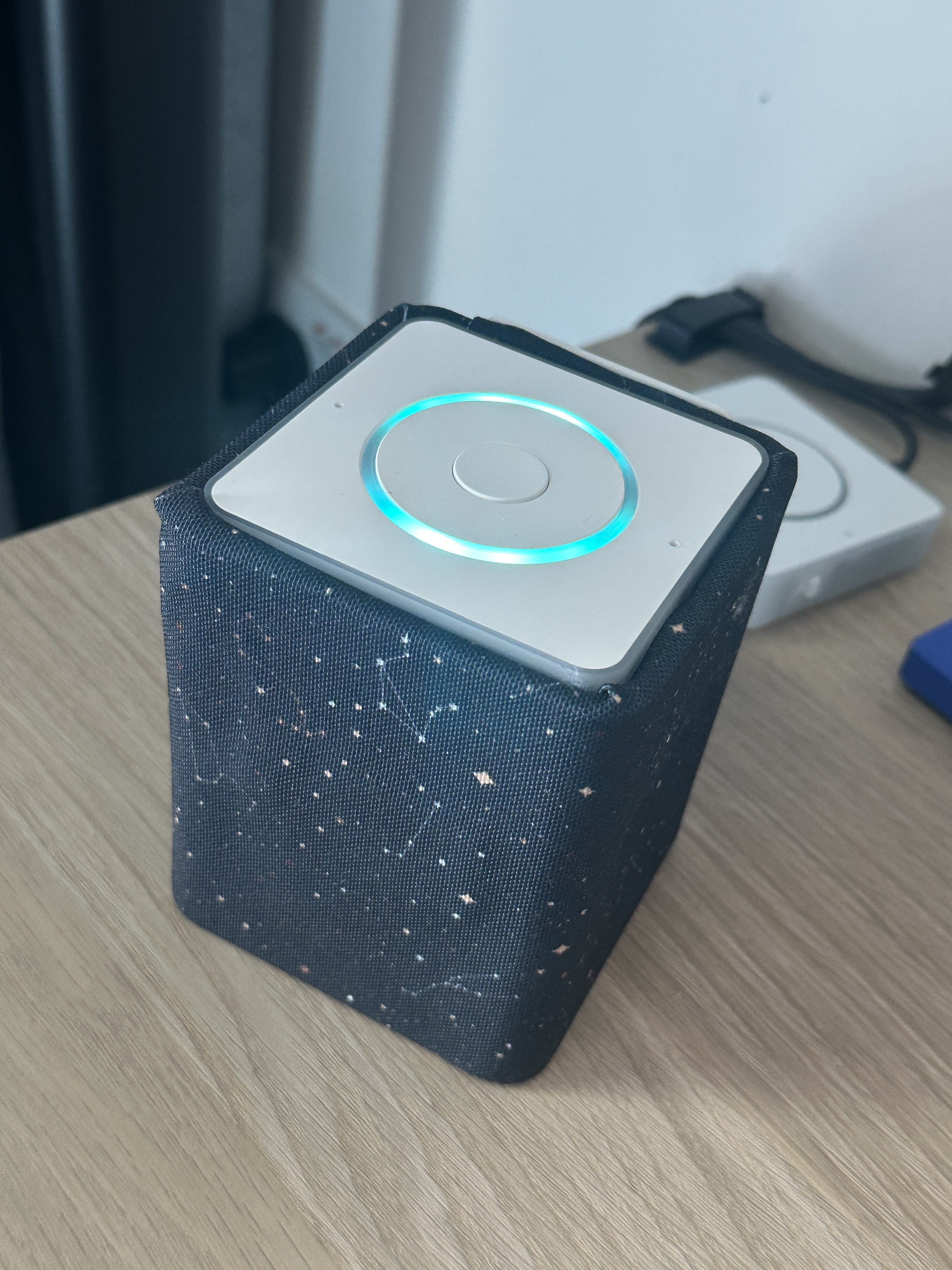
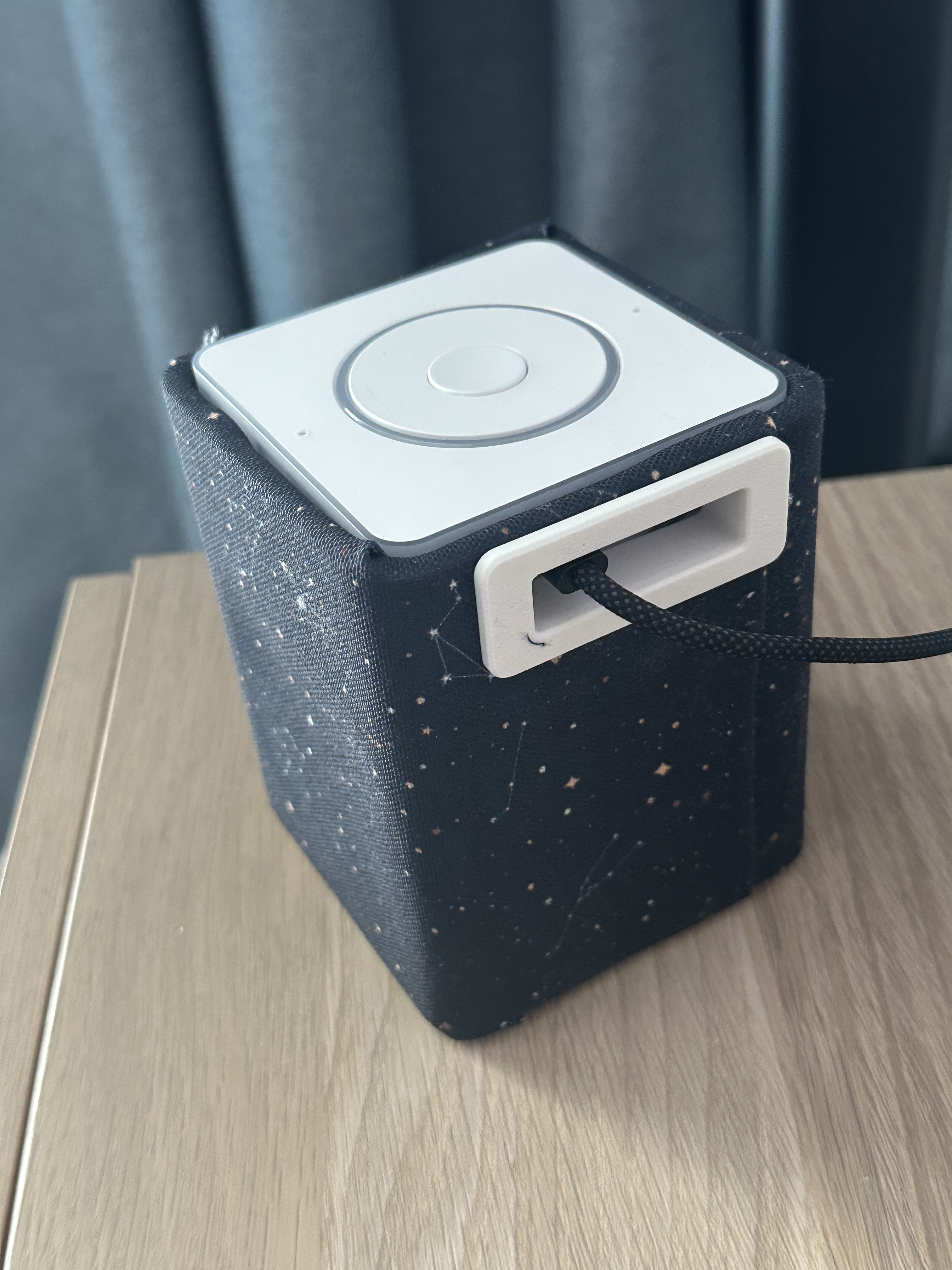
I then proceeded to hot glue basically everything together…even the fabric to the outside of the case. It was a bit of a bodge, but it ended up looking pretty ok! I mounted the NFC reader to the front (more hot glue) and the shelf the speaker was mounted to was hot glued a bit lower to allow the cable to be routed from the reader to the GROVE port on the Voice PE.
Did I remember to take photos of the process? No, no I didn’t. Still, it looks pretty ok now it’s done.
The software
So the plan was to be able to use the NFC reader to scan tags to play stories. A little like the yotobox, but no cloud and open source. However, I didn’t want to have a separate automation for every single tag. I also wanted Home Assistant to react differently depending on where the tag was scanned - to play on the new Voice PE device if it was scanned there, or to play on the living room speakers if it was scanned by the living room tag scanner. Some software magic needed to happen in Home Assistant!
The ingredients:
Music assistant
This makes things way more straightforward than futzing about with plex etc. The integration is so great that automations are as simple as choosing the target device, entering the media URI (which you can find for each item in Music Assistant if you scroll down on the item page) and then choosing options like enqueue & radio mode.
Trigger ID’s
These are really essential if keeping all the options in a single automation. This and this were really helpful in understanding how this works. Essentially it means that you can have multiple actions and each can be assigned a specific trigger all in the same automation. It really makes it tidy!
Here is an example:
  - alias: Jack & The Beanstalk
    trigger: tag
    tag_id: 04-1C-A6-C3-79-00-00
    id: jack_&_the_beanstalk
Tag reader device IDs
These were difficult to find at first, and I noticed when debugging the automation that they were featured in the Traces showing what had gone wrong. To find your NFC reader device_id easily, head to developer tools - Events - Listen to Events and type tag_scanned in the Event to subscribe to box. Hit “Start Listening” and scan a tag. The output should be something like this;
event_type: tag_scanned
data:
  tag_id: 04-1C-A6-C3-79-00-00
  name: Jack & The Beanstalk
  device_id: 1433933b661432512f63c98eacc1f9a2 ##This is the device_id!
origin: LOCAL
time_fired: "2026-01-25T06:54:07.383549+00:00"
context:
  id: 01KFSYWV0Q57R8XEK7FH2FF1DV
  parent_id: null
  user_id: null
The device_id can now be mapped to a particular media player with some variable logic. I can’t actually remember where I found the device_id of the Home Assistant Voice PE’s, but it can definitely be seen in the traces of automations when a sentence is used as a trigger.
Variables
This is where Home Assistant automation scripts veer dangerously close to actual programming. To be fair, this was only necessary because I had several different triggers (two NFC tag readers and two Voice PE’s) and two different places I potentially wanted audio media to be played.
variables:
  media_player_map:
    <device_id from steps above>: media_player.bedroom ##This maps the device_id of a tag reader to a media player
    <device_id from steps above>: media_player.living_room

  device_id: |-
    {%- if trigger.platform == 'tag' -%}
      {{ trigger.event.data.device_id }}
    {%- elif trigger.platform == 'conversation' -%}
      {{ trigger.device_id }}
    {%- else -%}
      none
    {%- endif -%}
  target_player: >-
    {{ media_player_map.get(device_id,
    'media_player.living_room') }} ##This sets a default media player
Some things to note - this is a script wide variable, so should be formatted to the very left of the yaml. More about this can be found here. The device_id logic is needed because the trigger devices are referred to differently in home assistant depending on if they are an nfc reader or a voice command. This logic works that out from the trigger platform and substitutes the correct media player name to be sent as the target_player variable.
Actions
Each story or playlist is a different option in choose from the actions menu. The trigger_id of a tag is specified as a condition for each option. So the Jack and the Beanstalk trigger_id from previously can be seen here:
choose:
    - conditions:
        - condition: trigger
        id:
            - jack_&_the_beanstalk
    sequence:
        - action: music_assistant.play_media
        metadata: {}
        target:
            entity_id: "{{ target_player }}" ##Here is where that previous variable logic is able to route the audio to the correct device
        data:
            media_id: library://track/52504 ##This is the URI of the file in music assistant
    alias: Jack and the Beanstalk
What’s nice is you can add radio_mode to with the URI of a playlist to randomise it. So, for example, I added a trigger conversation of “tell me a story,” gave it a unique trigger_id and then did the following action:
sequence:
- action: music_assistant.play_media
  metadata: {}
  target:
    entity_id: "{{ target_player }}"
  data:
    radio_mode: true
    media_id: library://playlist/1
alias: Random Story
which means a random story playlist will be generated whenever it is invoked and the story will play on the media player device that is next to (or in the case of the Voice PE, the same as) the device where the command was spoken.
Quality of life improvements
A few things have made this better. I set up a second automation to process events from the Voice PE so that a button press will pause the story, a long press will resume it, a double press will skip to the next story (if a playlist is present) and a triple press will transfer the story to speakers in the other room. Neat!
On the subject of playlists, sometimes Music Assistant got a bit confused if I had a playlist and then scanned an individual story tag. The scanned tag would play the associated story, but the playlist would then continue after it. I decided that the first action of the automation could be to clear the playlist of whatever device was about to have a story played. This was a simple:
actions:
  - action: media_player.clear_playlist
    metadata: {}
    target:
      entity_id: "{{ target_player }}"
    data: {}
I used the target_player variable again to ensure it would clear the Music Assistant queue of whichever media player was to be used.
The cards
These are super straightforward - just a business card sized picture of the book cover printed onto thick paper, an NFC sticker stuck on the back and then laminated. They are so cheap to make, it doesn’t really matter too much if they get broken. It’s a bit of a pain scanning each tag initially into Home Assistant and then referencing it in the automation, but once it’s done it’s done.
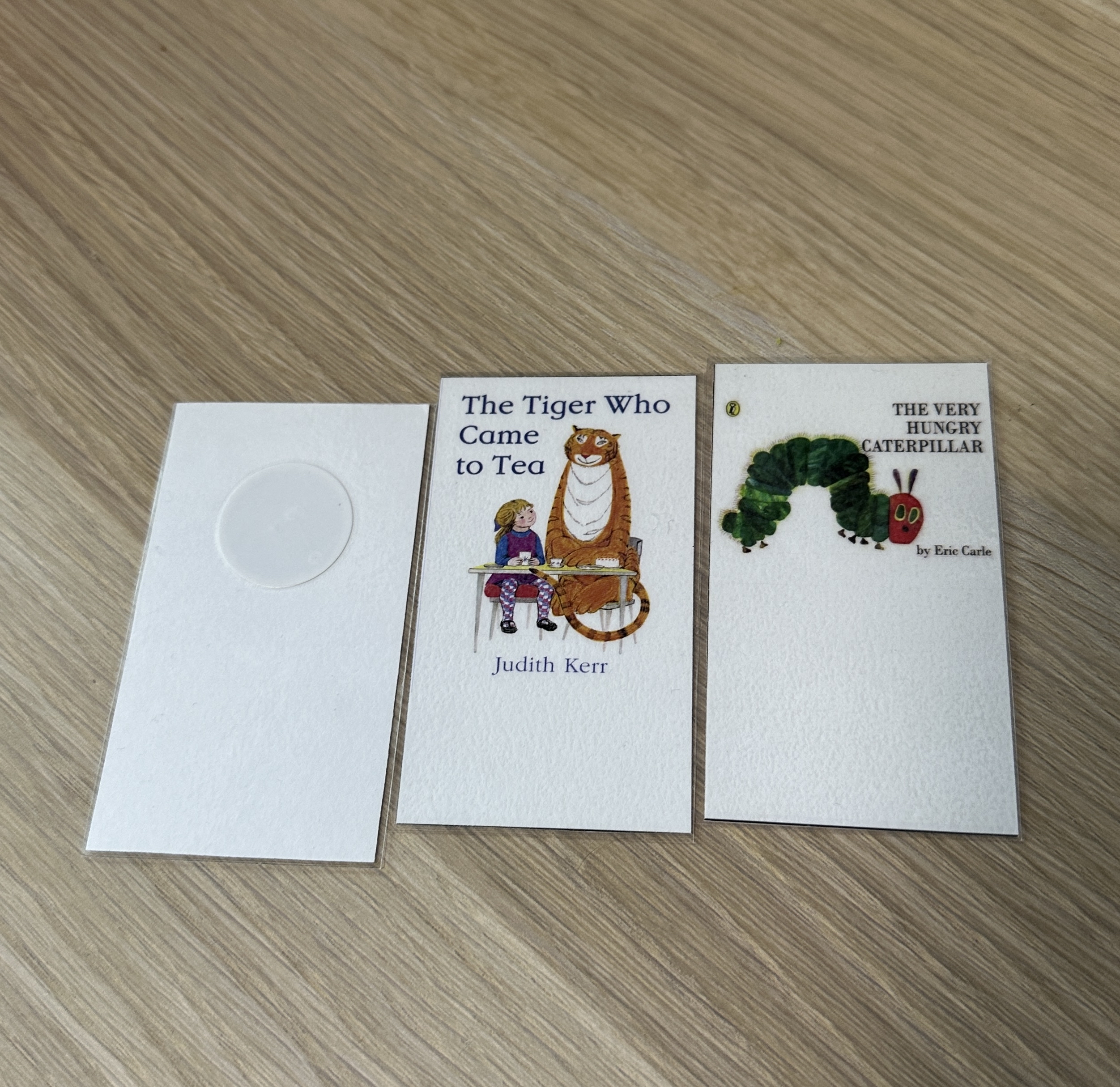
So that’s how I built the automation that turned my Voice PE + NFC reader project into an open source yotobox type device for my toddler. The joy was palpable when they realised the different cards were different stories, as well as the “tell me a story” automation. I was impressed it took about 2mins for them to understand how it all worked. Success!